Minerva · Student Portal
Student web portal — module by module
Everything a student can see and do after signing in at the portal, in the same order as the menu on the left of the screen. Sign in first — see Accessing the Portal for how to log in.
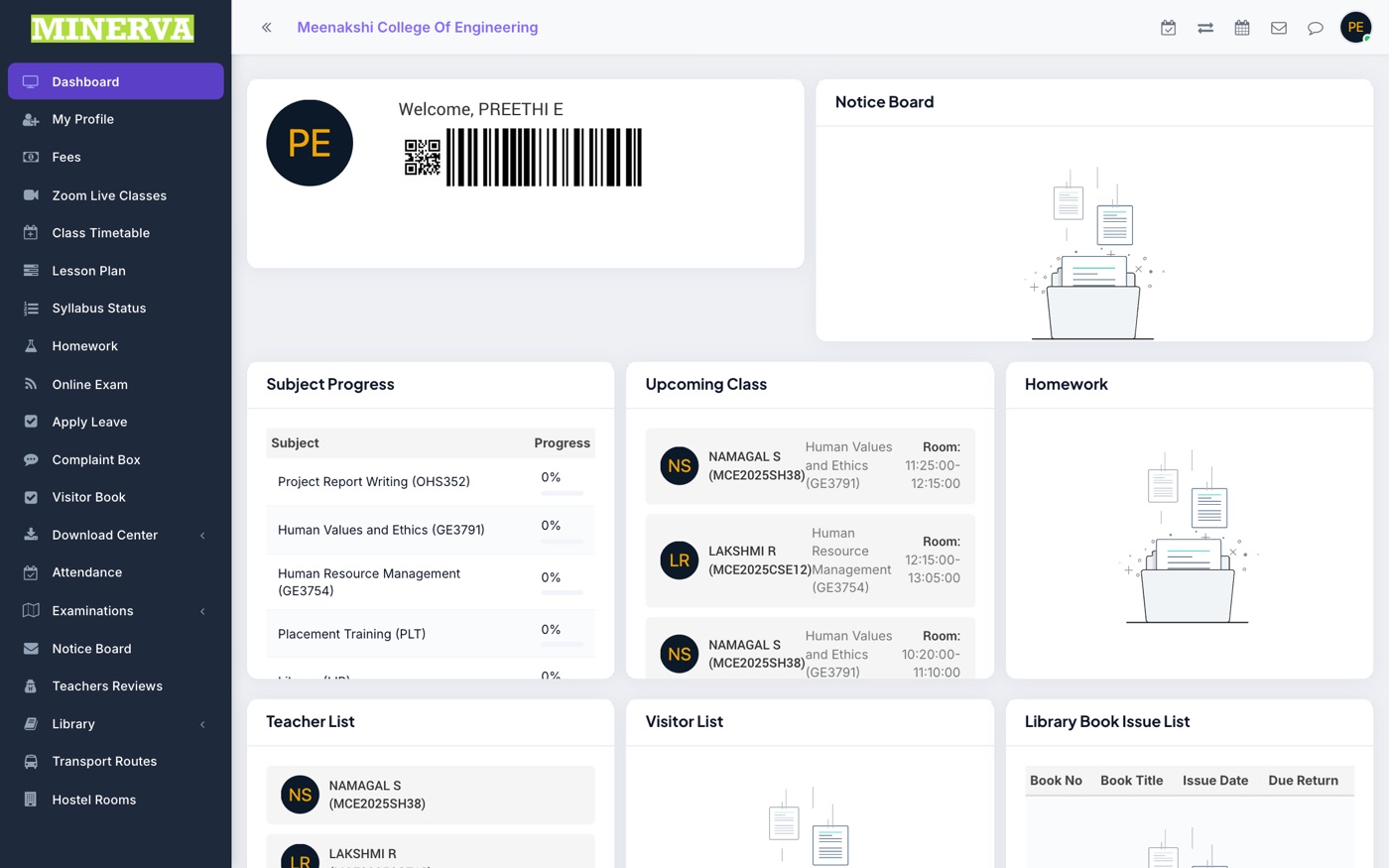
Dashboard
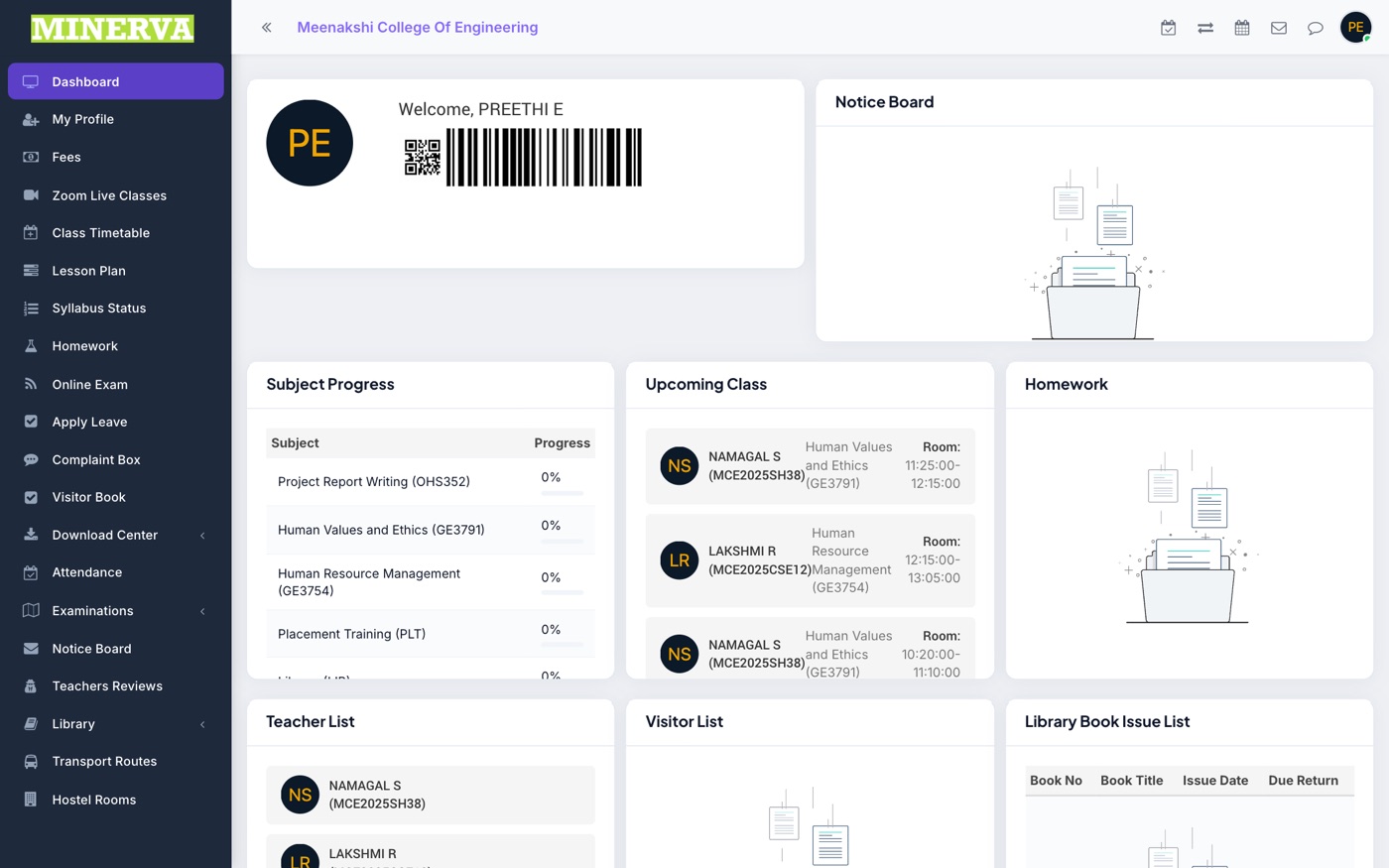
Your home screen after signing in — a quick summary of today: attendance so far, pending fees, recent notices, and upcoming items, with shortcut cards into the other modules.
My Profile
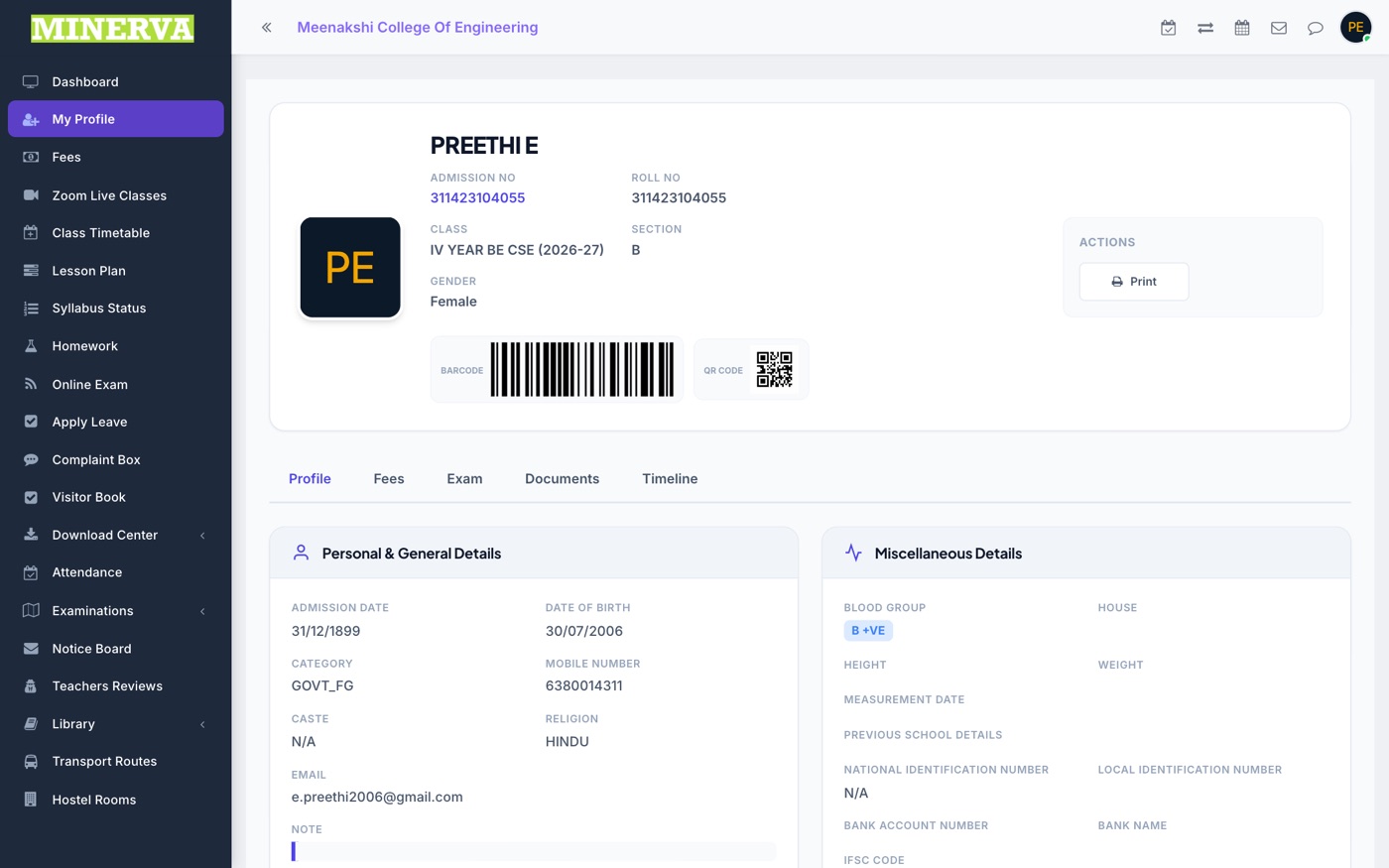
Your complete record as the institution has it: personal details, class & section, admission number, guardian details, and documents.
- Use the tabs on the profile page to switch between Profile, Fees, Exam, Documents, and Timeline.
- If anything shown here is wrong, inform the school office — profile data can only be corrected by the institution.
Fees
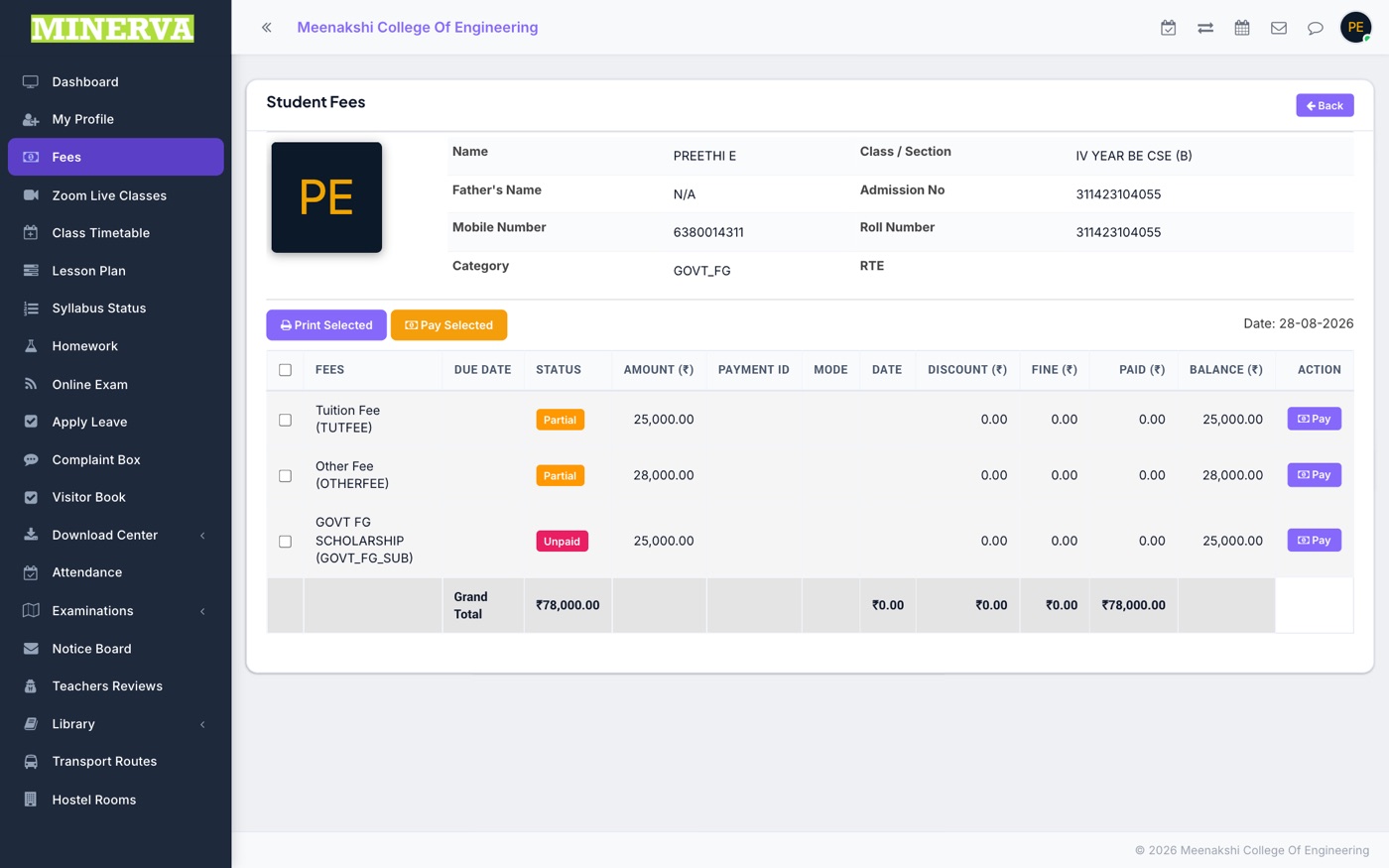
Every fee assigned to you with its amount, discount, fine, amount already paid, and balance — plus your payment history and printable receipts.
- Tick one or more unpaid fees and press Pay Selected to pay online through the payment gateway.
- Press the print icon on a paid row to download that receipt.
- If your institution accepts offline bank payments, use Offline Bank Payments to submit the bank transfer details and track their approval status.
Zoom Live Classes
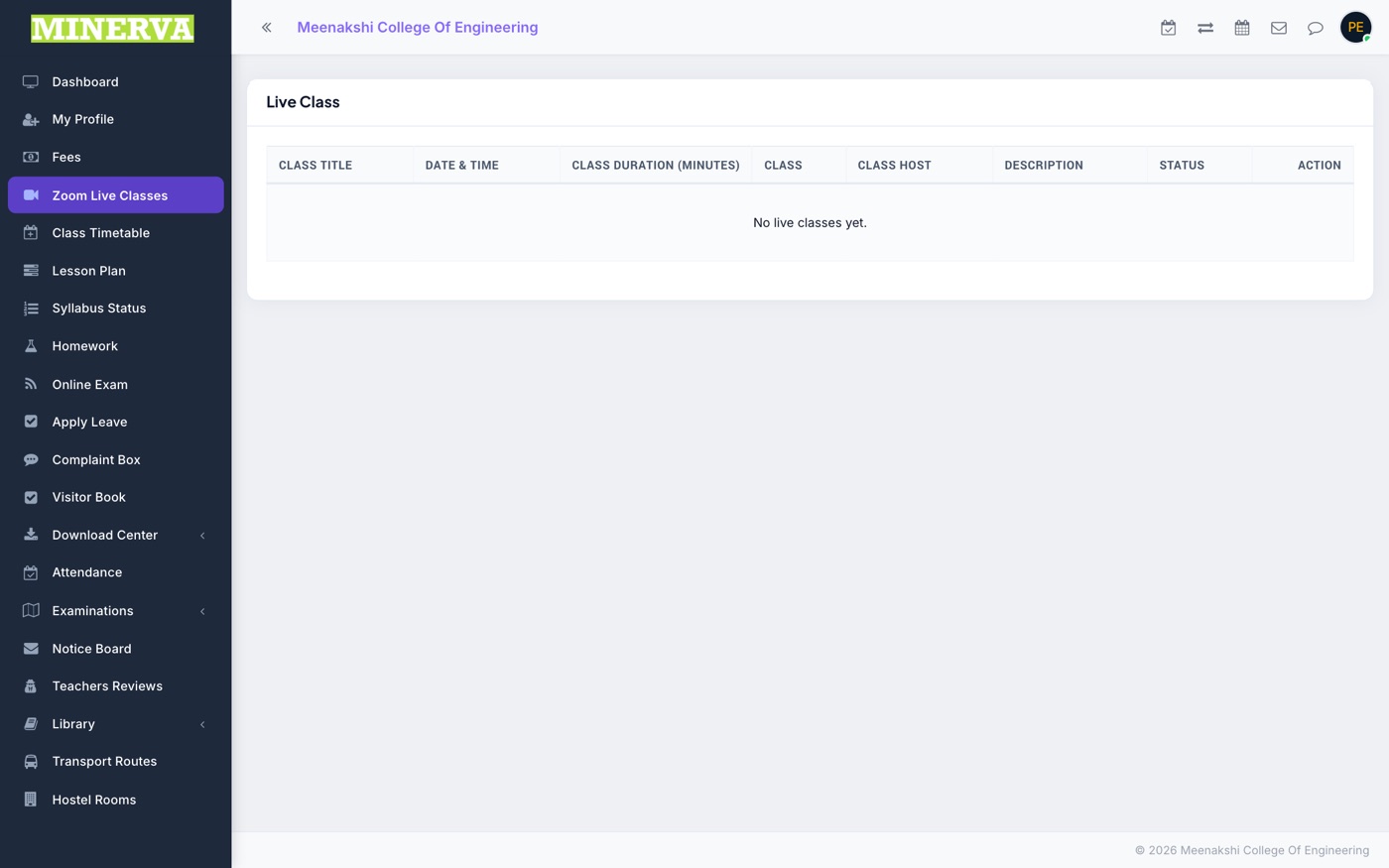
Online classes scheduled for your class-section. Each row shows the subject, date & time, and duration.
- When a class is live, press Join to open the meeting.
Class Timetable
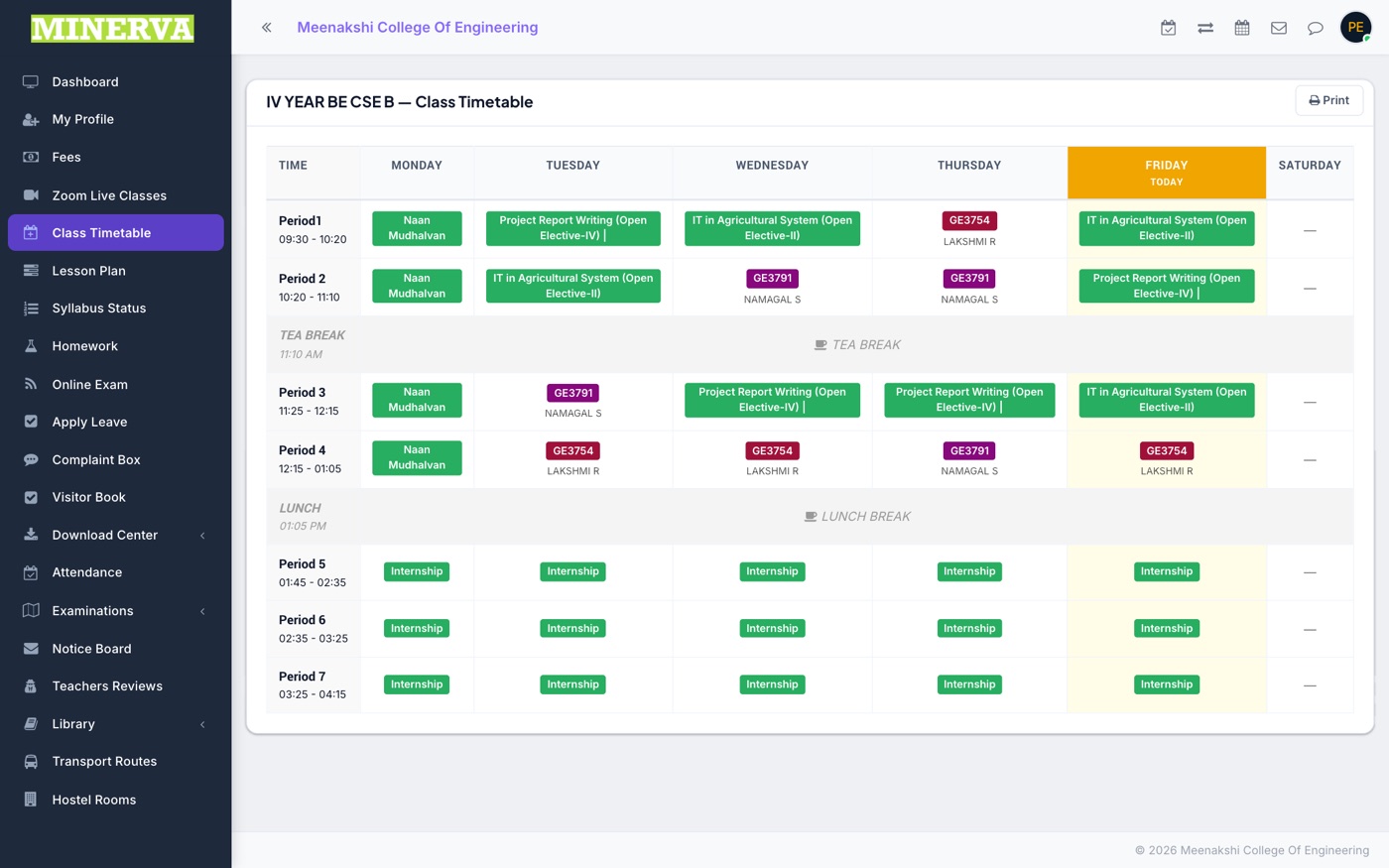
Your weekly period-by-period timetable: subject, teacher, and timing for each day.
- Use the Print button for a printable copy of the week.
Lesson Plan
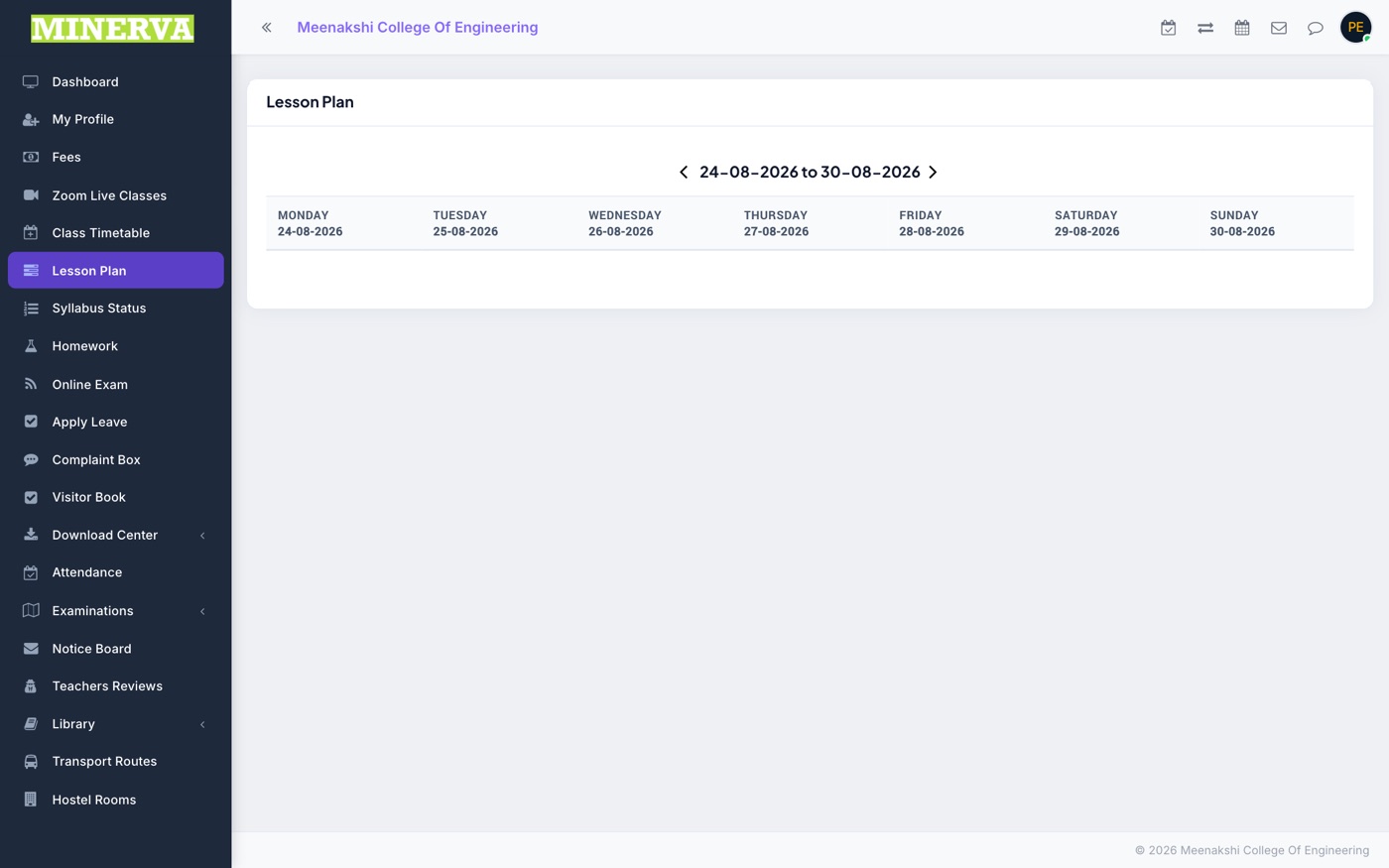
What your teachers have planned, lesson by lesson, for each subject — so you always know what's coming next.
Syllabus Status
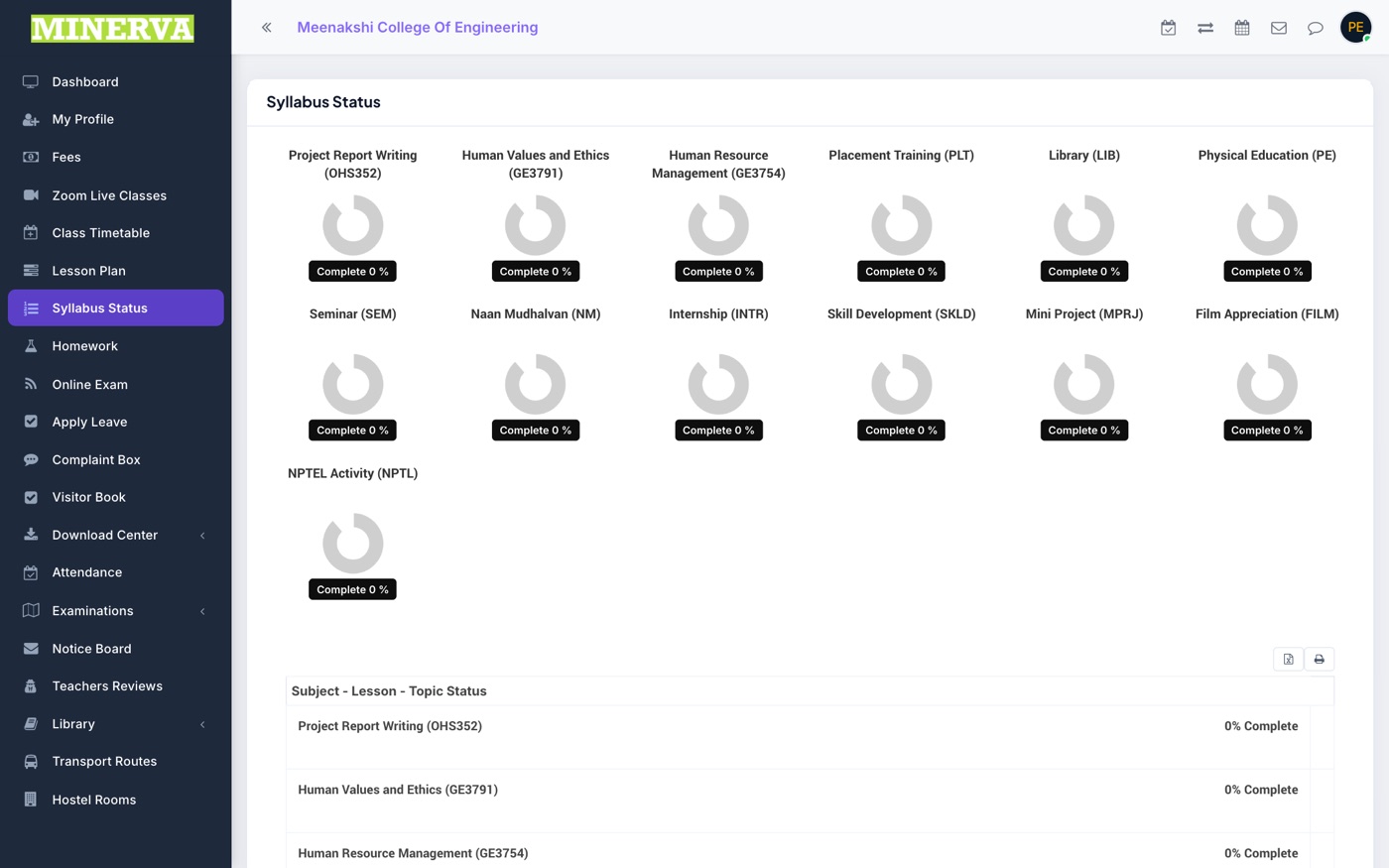
How much of each subject's syllabus has been completed so far, shown as a progress percentage per subject.
Homework
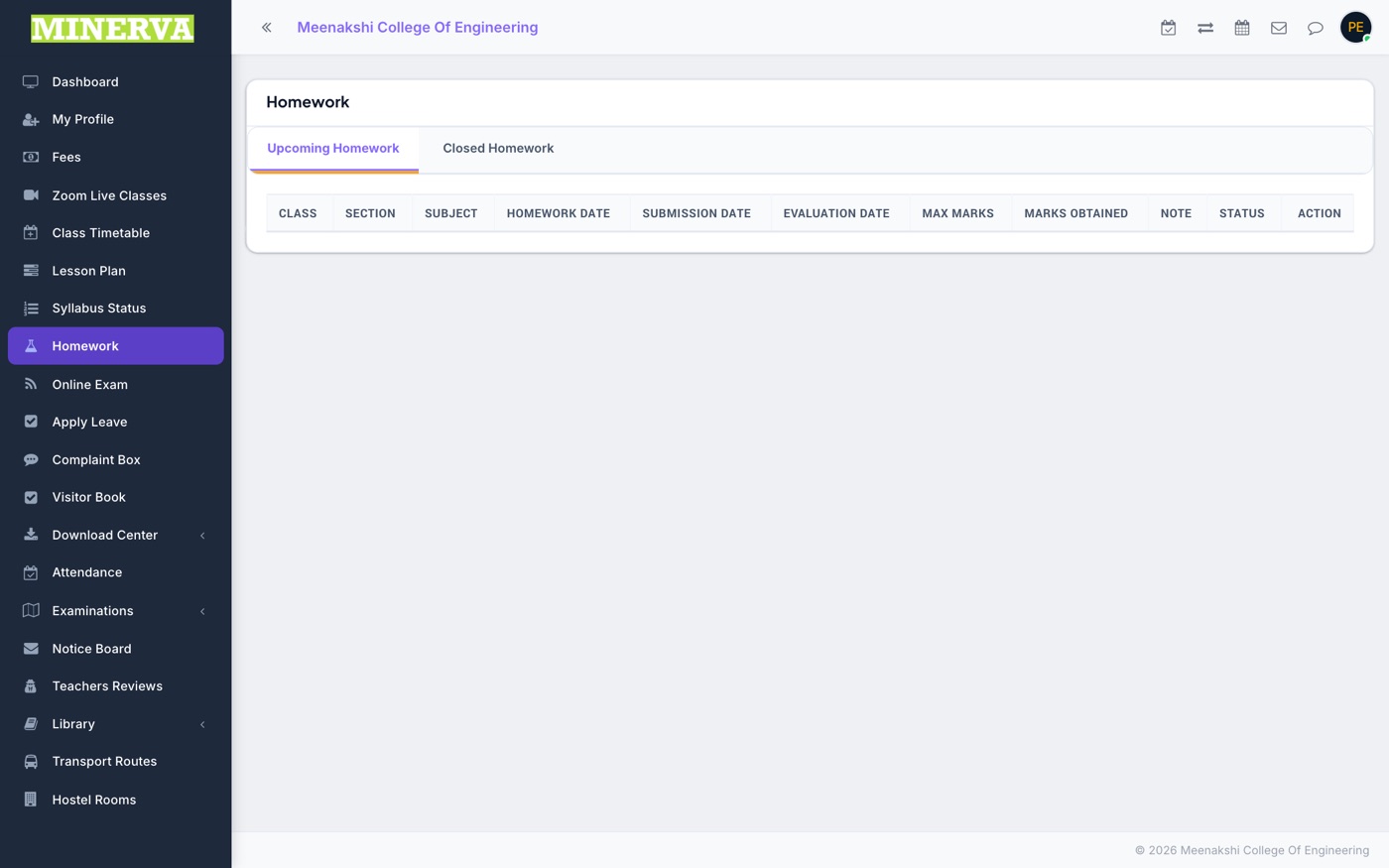
Homework assigned to your class with the given date, submission date, and evaluation status.
- Click a homework row to open its details and download any attached document.
- Upload your completed work on the detail page and press Submit — the row's status changes to Submitted, and later to Evaluated once the teacher marks it.
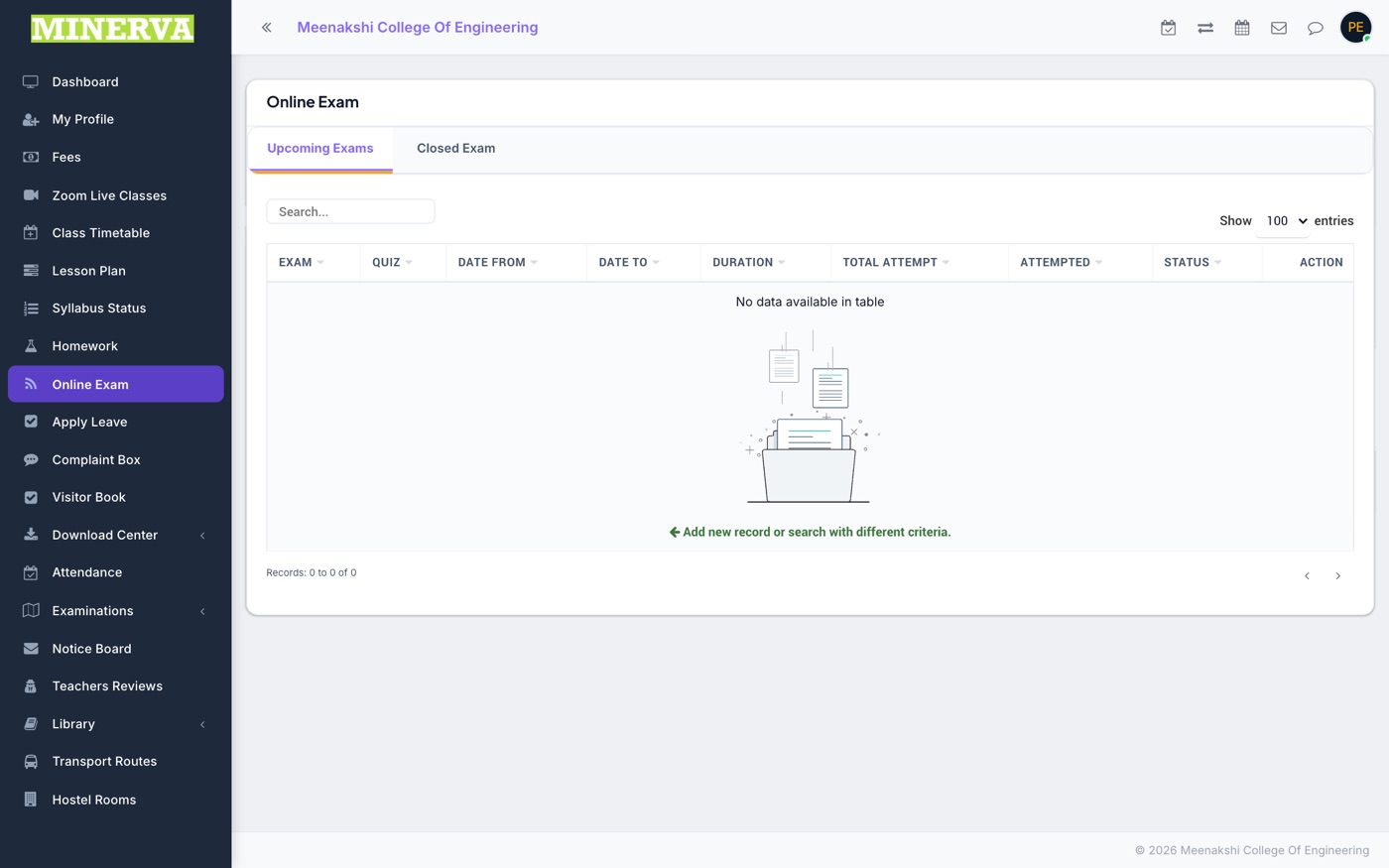
Online Exam
Online exams published for you, with their date window and duration. Results appear here after evaluation.
- When an exam is open, click it and press Start — answer the questions and submit before the time runs out.
- After results are published, open the same exam to see your score and answers.
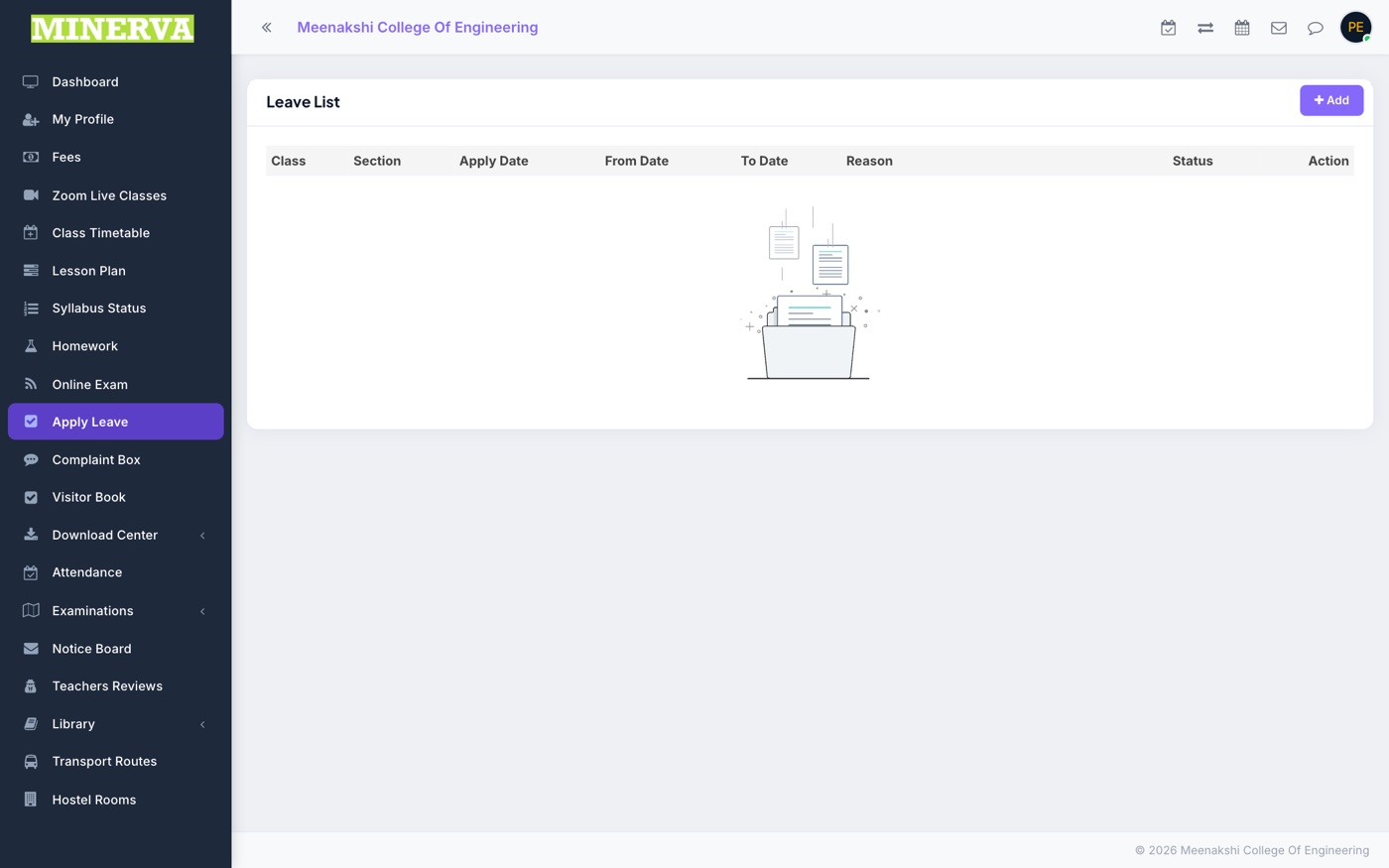
Apply Leave
Request leave from class and track what happened to each request (Pending / Approved / Disapproved).
- Press Apply Leave, pick the From and To dates, and write the reason.
- Attach a supporting document if you have one (medical certificate, letter), then submit.
- Track the request's status in the list — the institution approves or declines it.
Complaint Box
Raise a concern directly with the institution and follow it up in one place.
- Choose the complaint type and priority, describe the issue, and add your contact number.
- Attach a photo or document if it helps explain the problem, then submit.
- Open a submitted complaint anytime to see its status and the institution's response.
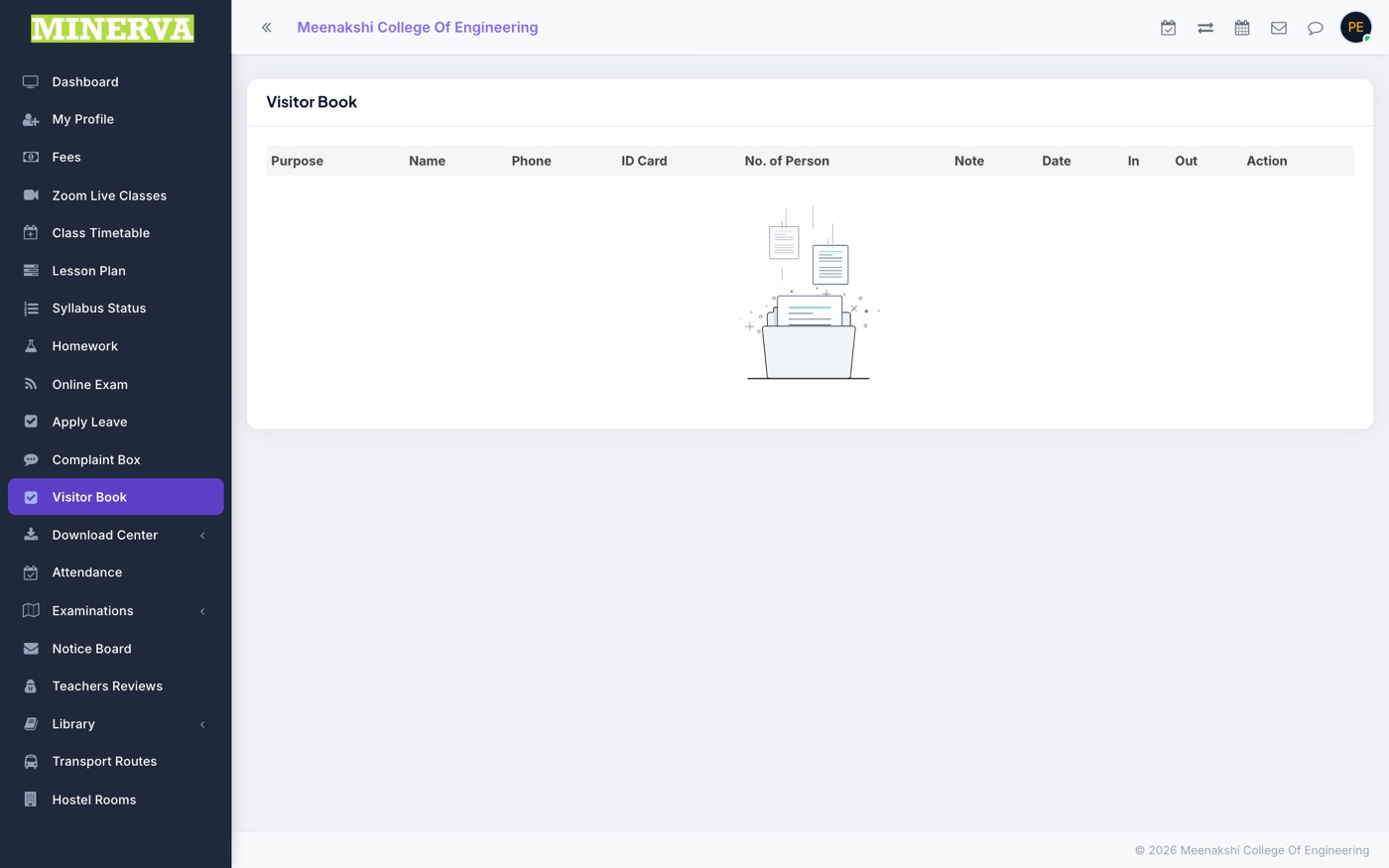
Visitor Book
A log of visitors recorded against you (for example a parent or guardian visiting the campus), with date, purpose, and in/out time.
Download Center
Study material shared by the institution — assignments, study material, and other documents under Contents, plus recorded Video Tutorials.
- Open Download Center → Contents and press the download icon on any item.
- Open Download Center → Video Tutorial to watch shared video lessons.
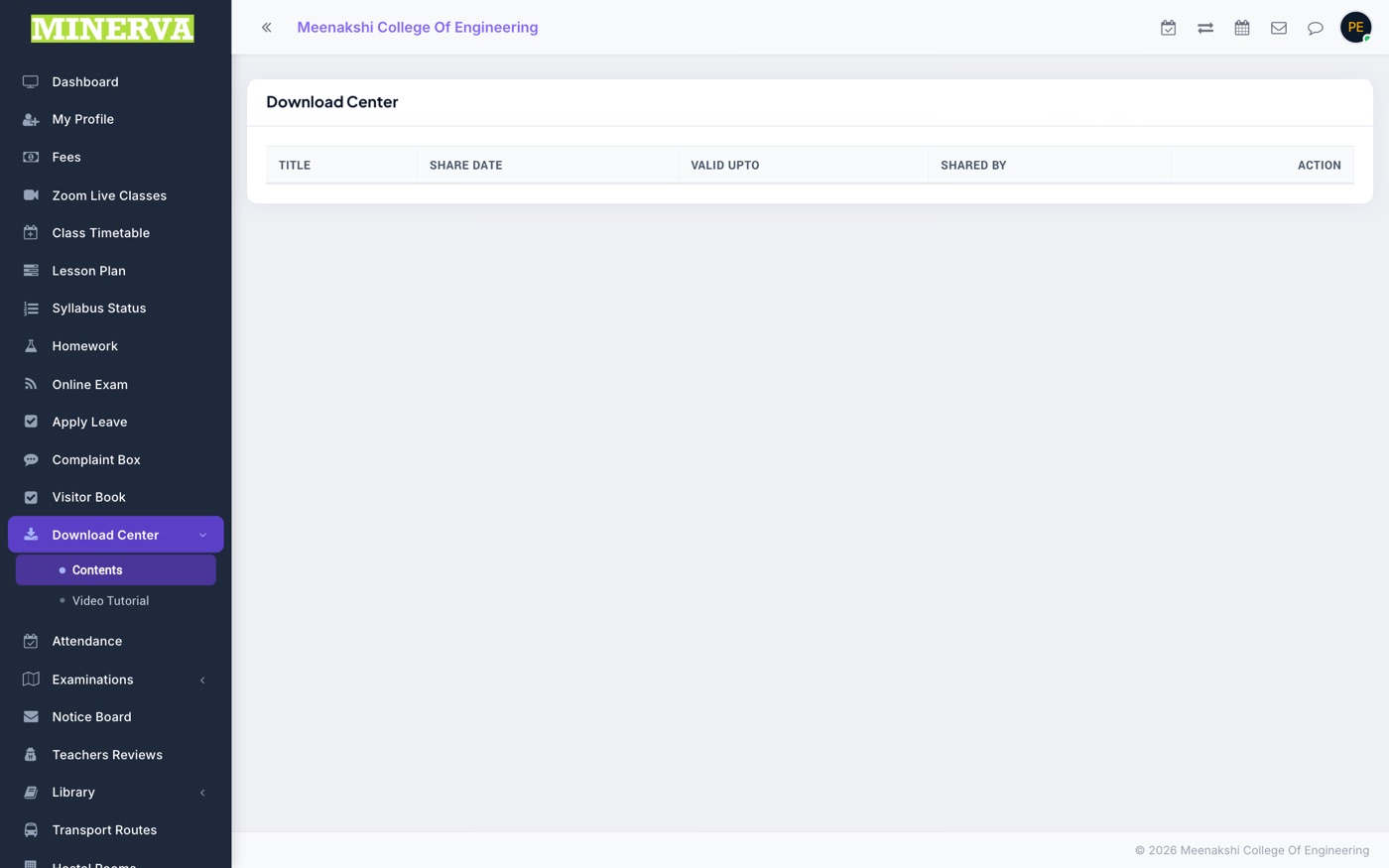
Attendance
Your attendance record for the session — day-by-day (or period-by-period, depending on your institution), with monthly summaries of present, absent, and late days.
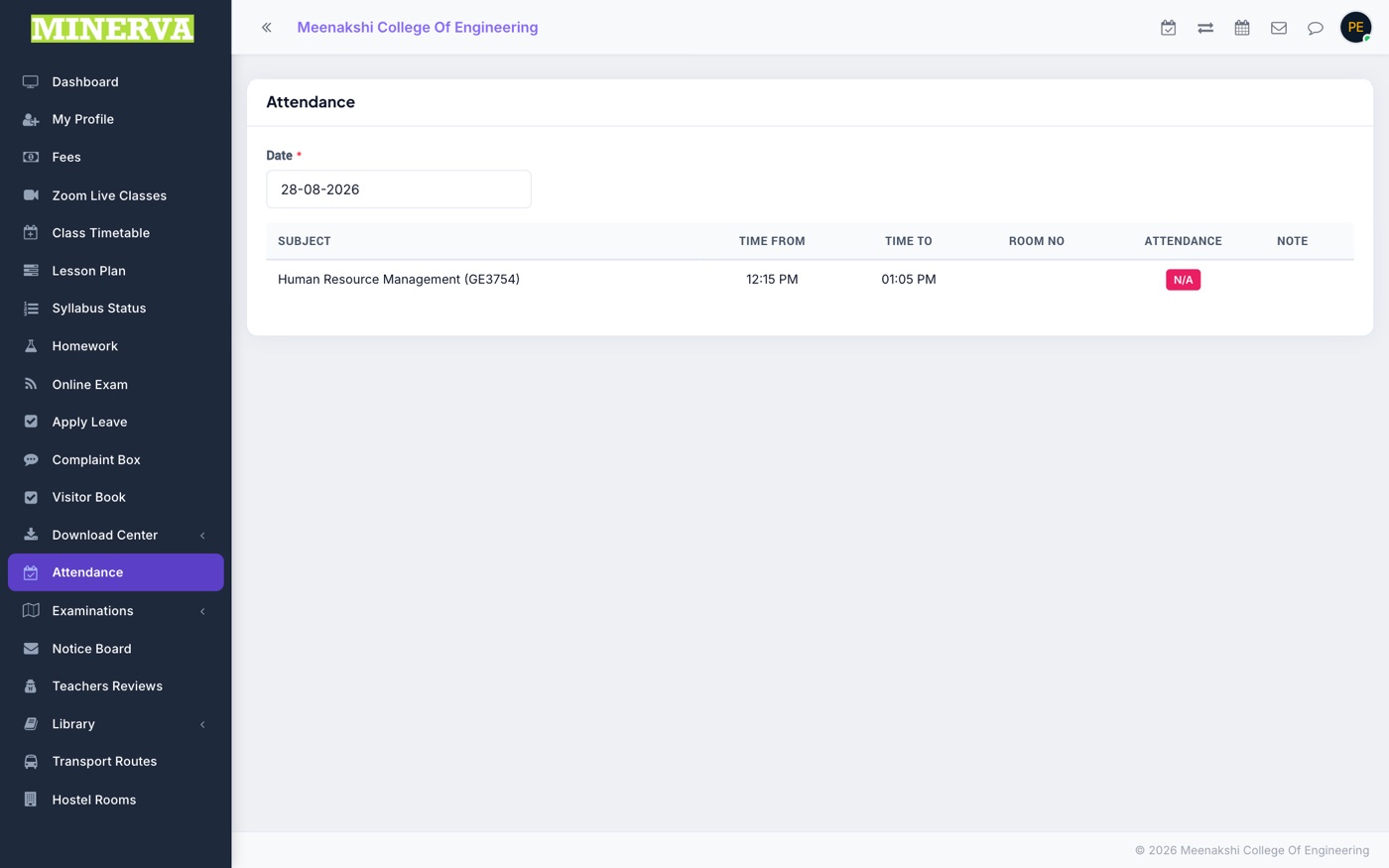
Examinations
Two screens: Exam Schedule shows upcoming exams with date, time, and room; Exam Result shows your marks and grade once results are published.
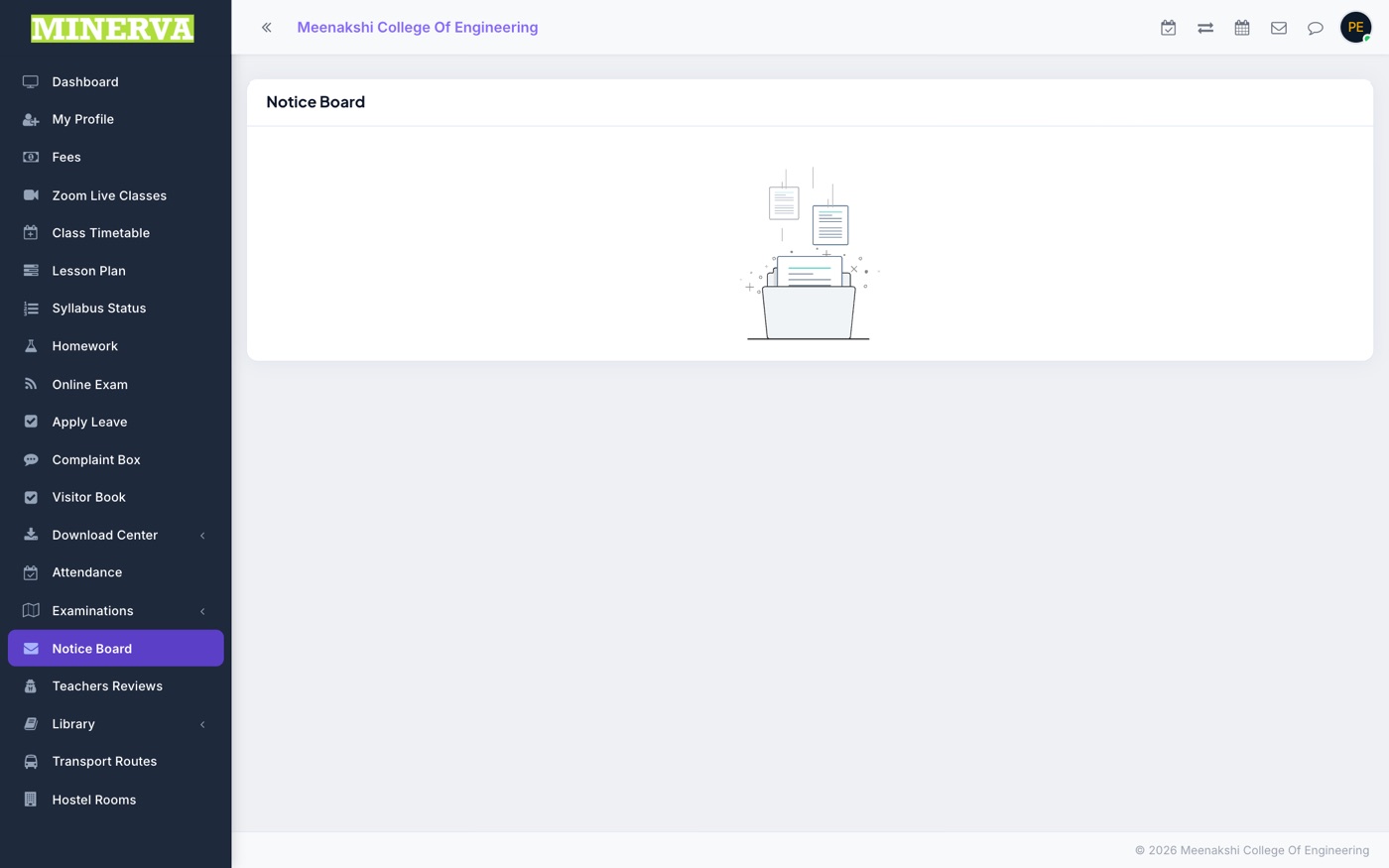
Notice Board
Announcements from the institution. A red badge on the menu shows how many notices you haven't read yet.
- Click a notice to read it in full and download any attachment.
Teachers Reviews
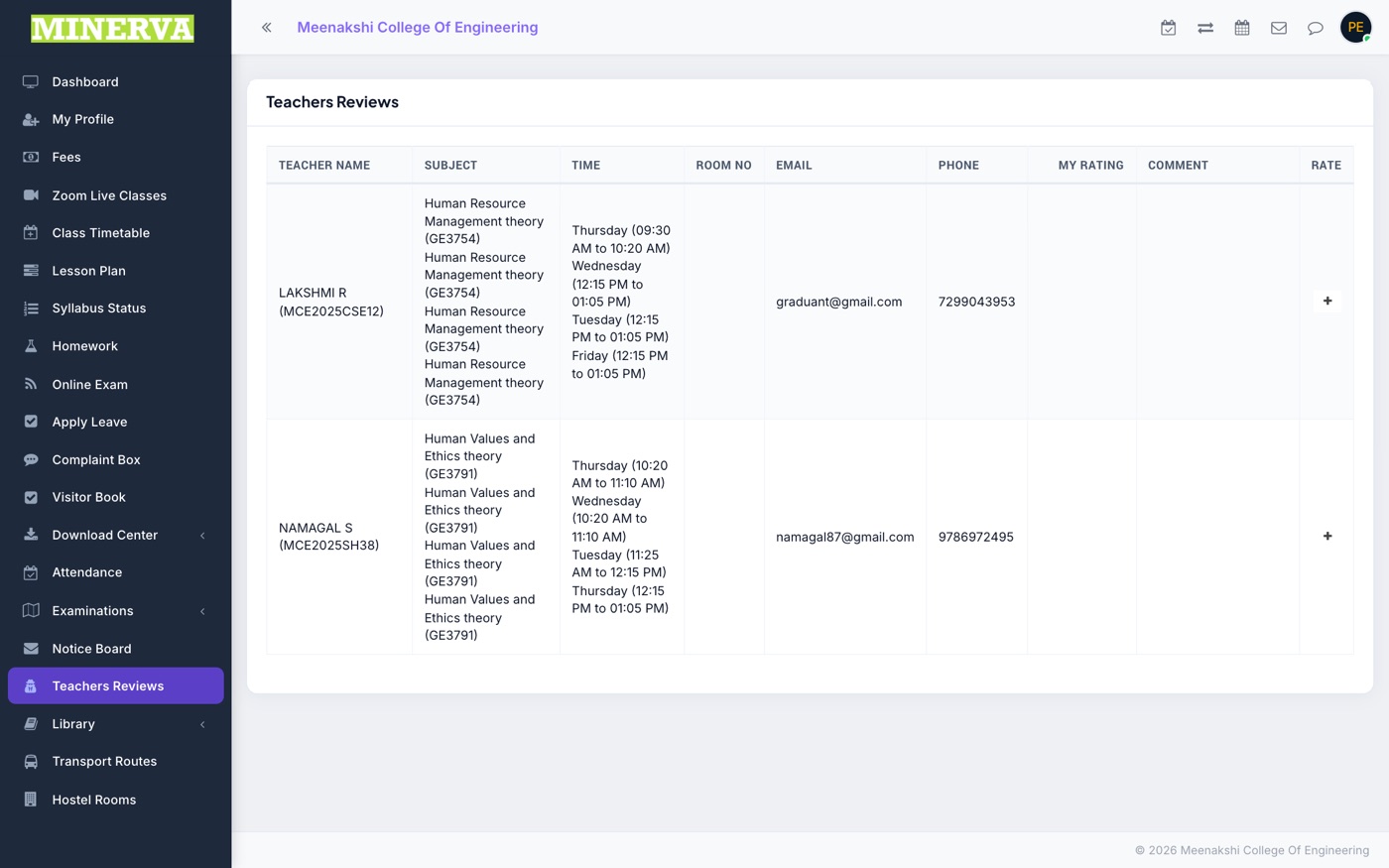
The teachers who take your classes, with their subjects and timings — and a place to rate them.
- Press the stars in the My Rating column to rate a teacher; the overall rating column shows the combined score.
Library
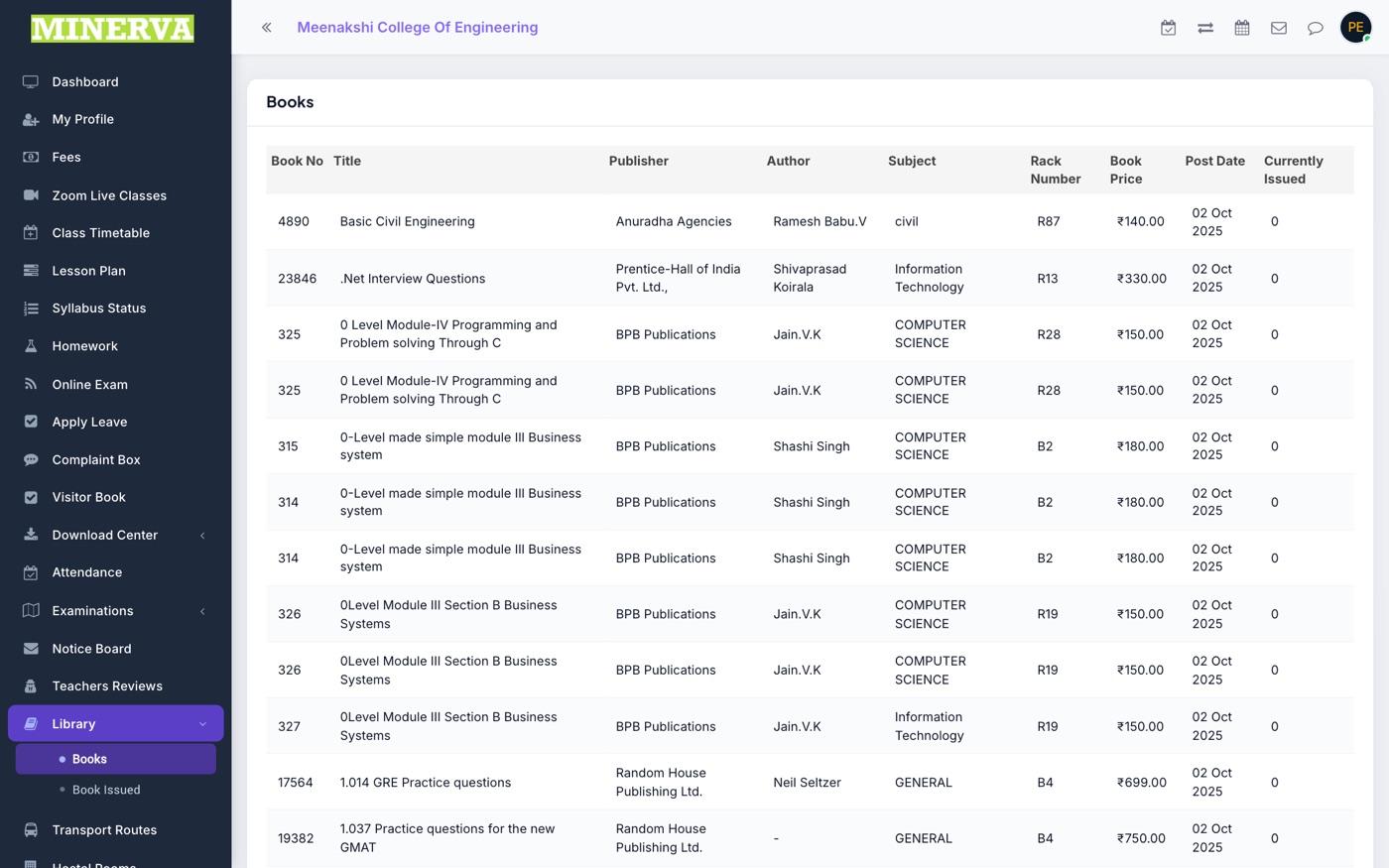
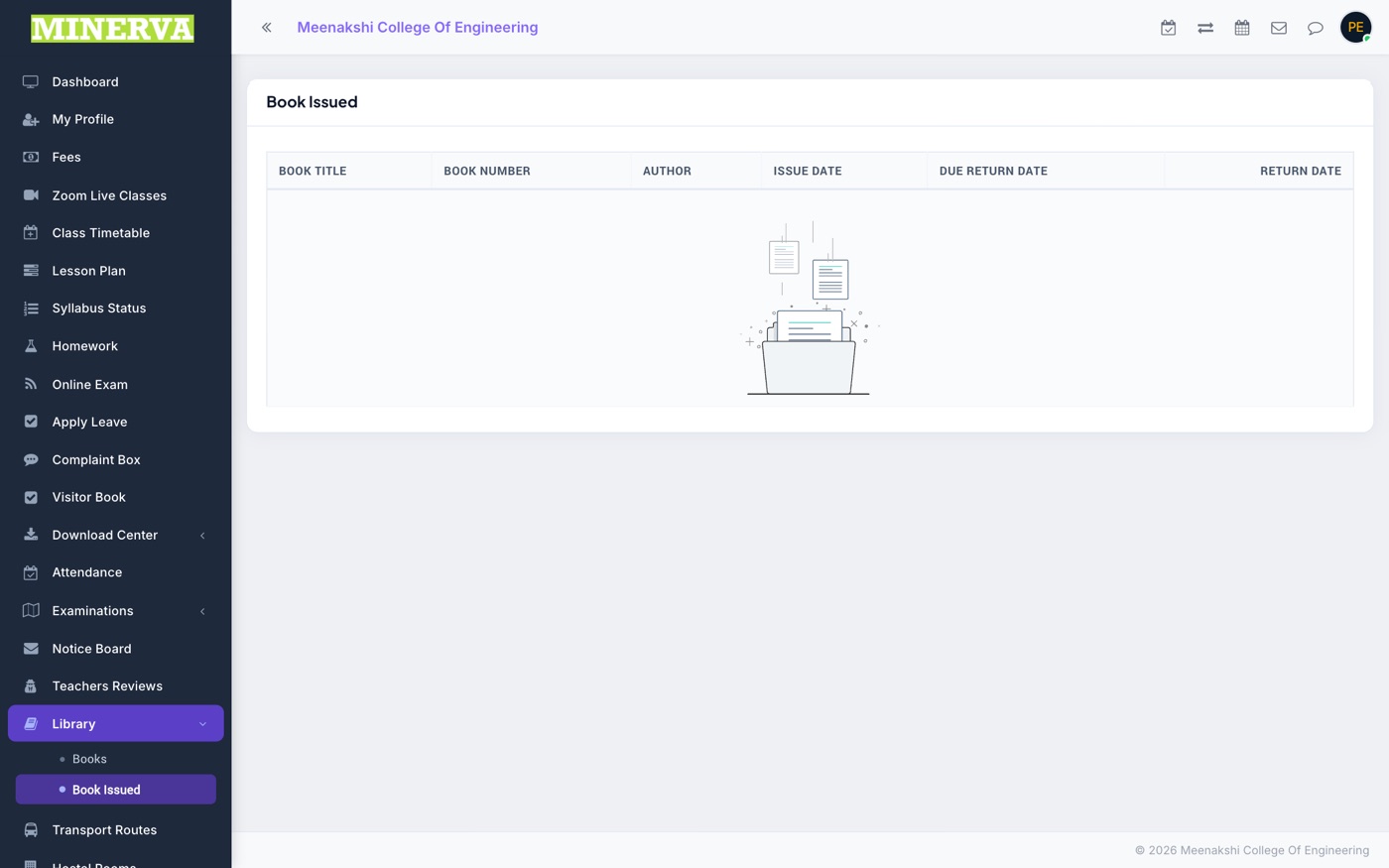
Two screens: Books lets you browse the library's full catalogue (title, author, rack, availability); Book Issued lists the books issued to you with due and return dates.
Transport Routes
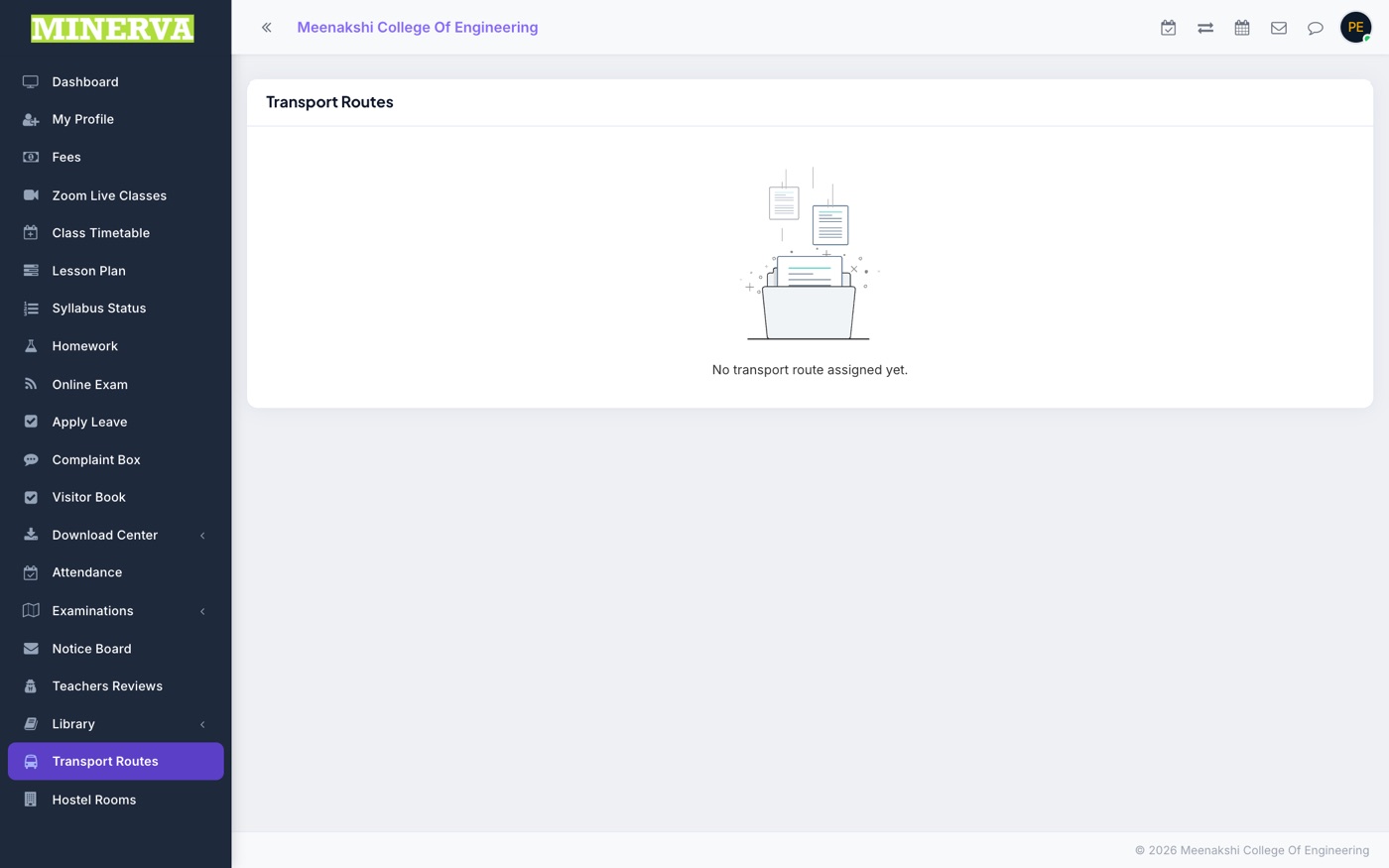
The institution's transport routes with pickup points, timings, and fares — including the route assigned to you, if any.
Hostel Rooms
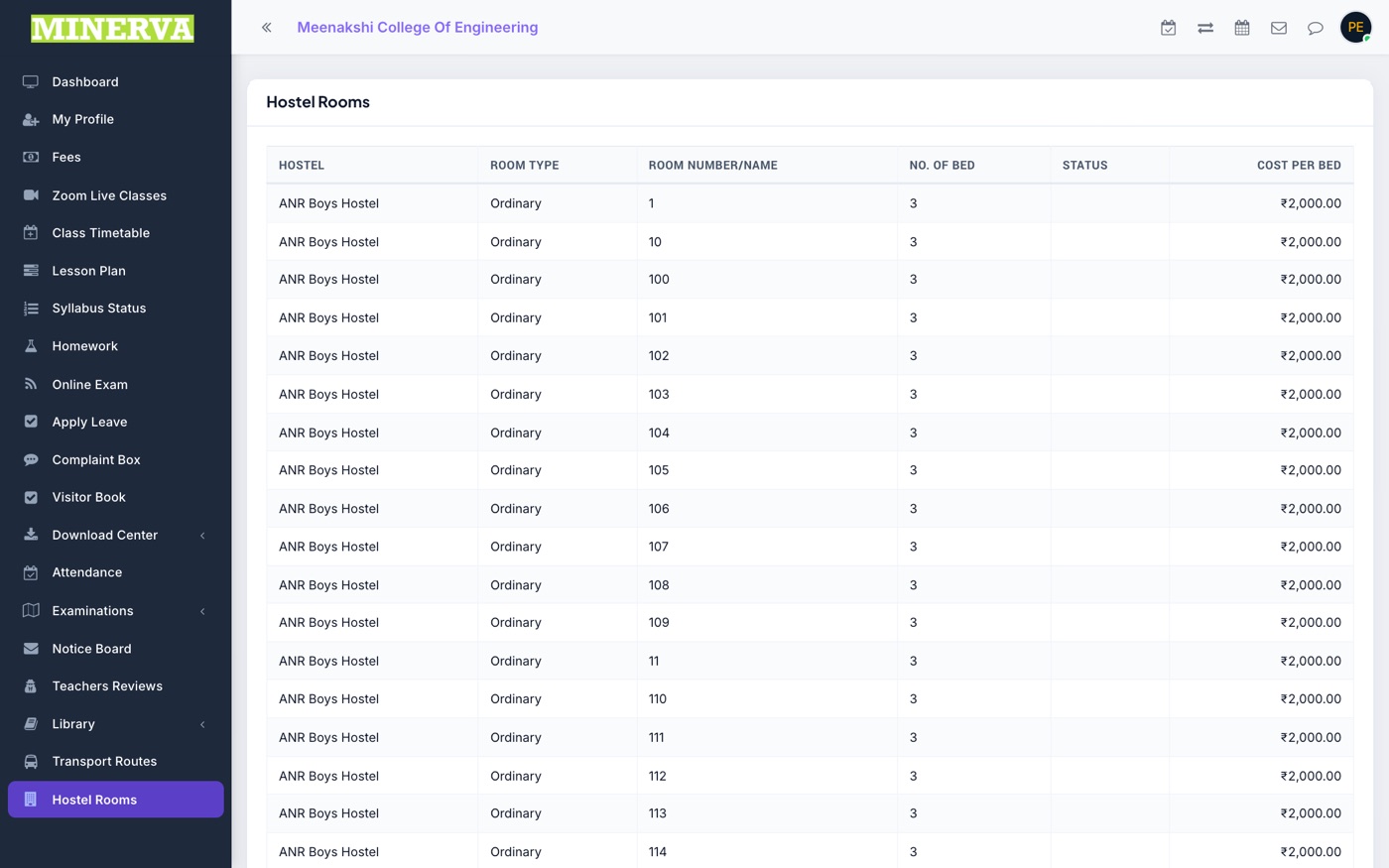
Hostel room types and details — and your own room allocation, if you are a hosteller.
Need help?
- Can't sign in? Your username is your admission number; contact the school or college office to reset your password.
- Something looks wrong or missing? Data shown here is maintained by your institution — report it to the office.